


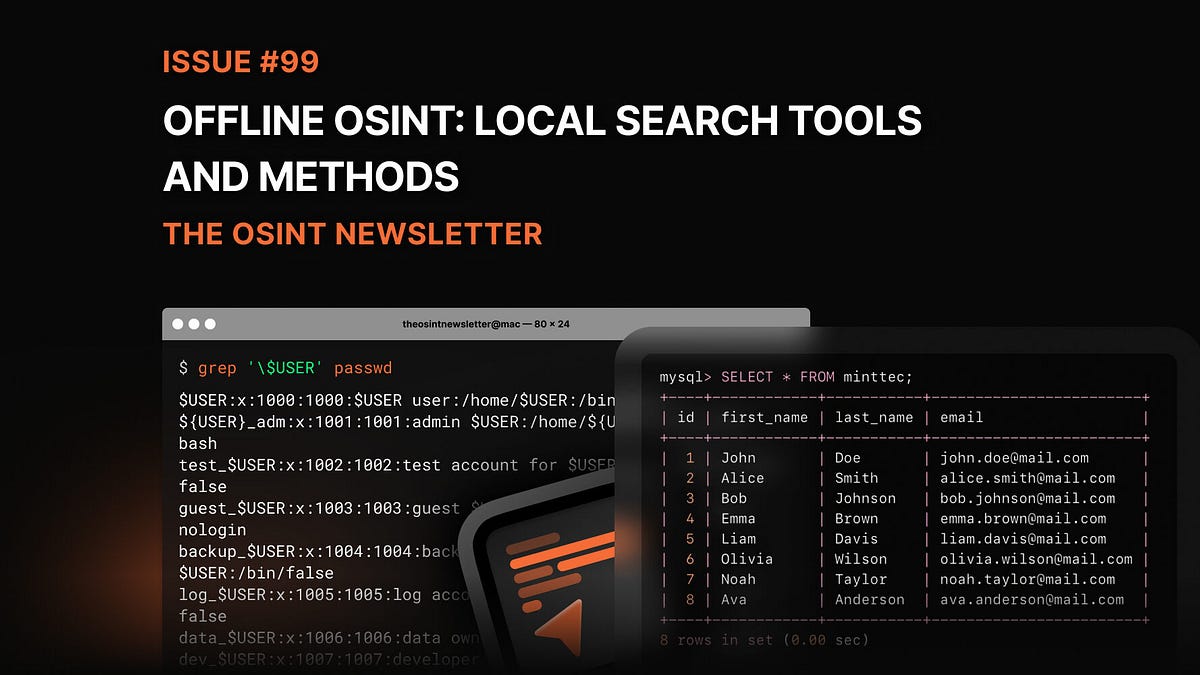
👋 Welcome to the 99th issue of The OSINT Newsletter. This issue contains OSINT news, community posts, tactics, techniques, and tools to help you become a better investigator. Here’s an overview of what’s in this issue:
-
How to search large datasets locally
-
Command-line search methods
-
Pro tools for processing structured data
-
…and everything you need to know about analysing large files.
🪃 If you missed the last newsletter, here’s a link to catch up.
⚡ Collecting Information from Local Sources in an OSINT Investigation

🎙️ If you prefer to listen, here’s a link to the podcast instead.

Let’s get started. ⬇️
Not all OSINT happens on the internet. Sometimes the most valuable insights come from something you’ve already got downloaded; and every OSINT investigator has heaps of exported spreadsheets and datasets on file to work with. But when you’re archiving everything, it’s easy for your collection of documents – or even the size of the datasets themselves – to get huge.
But processing data with the wrong tools can be a real drag. If you’ve ever tried to open a 3GB CSV file in Excel, you already know the pain. Standard office tools simply weren’t built for investigative-scale datasets – and that’s where local device search tools come in.
Let’s get into local search.
OSINT investigators often end up working with big datasets. Breach dumps, scrapes, exports and archives can mount up, with a single file easily containing millions of rows. A rookie investigator will usually try to open these with traditional spreadsheet software (think Microsoft Excel); only to find it crashes instantly or slows to a stop. In turn, searching through a dataset is even more of a struggle. It’s possible, but it’s extremely painful.
Local device search tools are made to solve this problem. They scan the files directly, without loading everything into memory and making themselves sluggish. Instead of manually scrolling through data, you can extract exactly what you need in seconds – like pulling from a digital library catalog, rather than searching shelf-by-shelf.
The tools we’re about to talk about are all naturals at searching big files. But what if you want to do more than just search? Then you need processing power. If you want to:
-
Extract all email domains from a breach file
-
Identify the most common usernames in a dataset
-
Count how many times a specific organisation appears
-
Separate valid data from corrupted rows
Then clearly, just search won’t cut it. Luckily, command-line processing tools excel at these tasks because they’re designed for automation and scale. Many investigators will even combine the tools we’re about to discuss together; mixing and matching methods and modules lets you build data- processing pipelines that perfectly fit your needs.
For example, you might search up a keyword with grep, then use awk to count the matches. If it sounds like we’re talking nonsense… let’s learn what the grep we’re on about.
grep (short for global regular expression print) is one of the most popular local device search tools in the OSINT community. It’s a Unix command-based search, localised to your device; grep scans text files for matching patterns, and returns every line containing your query.
It’s fast, simple, and extremely powerful when working with large text-based datasets. The perfect way to surface those pesky data points when they’re swamped. Use grep to search files for:
For example, if you wanted to search a breach file for a particular email address, grep could scan millions of rows for it almost instantly.
On top of this, grep can also do pattern matching. This means you can search for entire categories of data, too, as well as exact words; any email address ending in a particular domain, for instance. Because it reads line-by-line rather than loading files fully, grep can comfortably handle big datasets that would blow up normal apps.
Most OSINT datasets are stored as CSV files. CSV stands for “comma separated values,” and it’s one of the most common formats for structured data exports. Breach databases, scraped content, and research datasets are frequently distributed this way. Usually, CSV means spreadsheets; but even programs that don’t seem like spreadsheet apps will often offer CSV as an output file type.
But CSV files grow big, fast. To deal with this, you need a tool specially designed to deal with CSVs – without opening them and overloading your machine. csvkit is such a tool; it works from the command line to search, filter, and analyse spreadsheets without opening. Instead of scrolling through millions of rows, you can:
-
View column headers instantly
-
Filter rows based on conditions
-
Extract specific columns
-
Convert files into other (more manageable) formats
For example, if a sheet has three columns full of usernames, IPs, and emails, csvkit allows you to isolate just the column you need and ignore the rest. Makes it much easier to focus on each different data point methodically without getting distracted.
Beyond grep and csvkit, several other lower-case-named tools are popular in pro OSINT workflows. They might have a disregard for grammar rules, but they’re great at handling big datasets – searching, processing, analysing, and more.
-
ripgrep: ripgrep is designed to make grep commands even quicker and easier with little changes; automatically ignoring irrelevant files, like binary data for example. If you have a whole folder of datasets, ripgrep will whip through that entire directory structure – stat.
-
awk: like grep and sed, awk is a command-line filter. More general than grep, it’s often used for processing structured data – and can handle different commands and modifications than its cousins.
-
jq: described as “sed for JSON data”. Sometimes, datasets are stored in JSON format rather than CSV, making them much more difficult to read manually. jq can search and pull out specific fields from JSON data turning messy machine-readable files into human-readable intel.
-
SQLite: When a dataset gets super big, it’s sometimes easier to import it into a lightweight database than leave it standalone. SQLite lets you do this. Plus, it’s already the most used database engine in the world.
this time, imagine you are a professional osint analyst, working with a dataset containing millions of logins. but something seems wrong. immediately, you realise – all the data appears in lowercase.
somebody has stolen all the capital letters, and the issue is spreading. you need to find out when, and how.
first you need to confirm that the capitals have gone. using grep, you scan the dataset for a username you know should be capitalised. Here, every instance appears in lowercase – confirming the capitals aren’t where they should be.
next, you process the data for evidence. you use awk to analyse patterns across the dataset – counting the examples of that de-capitalised username, and identifying other entries that should have been capitalised. you begin to question the thief’s motives.
you isolate each column with cvskit, and work through each methodically: usernames, email addresses, dates, checking each for formatting issues. the loss has occurred consistently across all fields. seeing the scale of the crime disturbs you.
Finally, you run jq on an older version of your dataset. these files still contain capital letters – meaning the dataset was just corrupted during the csv export.
as for the issue spreading… you need a new keyboard.
So, now you know the basics of local search. By now you should be able to:
-
Search: Use commands to find specific data points
-
Process: Execute more complex commands to make your life easier
-
Analyse: Work with tools to identify patterns and pivot
-
type: ignore automatic capitalisation and write in lower case
See you next time, investigators!
🏁 New CTF Challenge Live – The Hacktivist (2 Parts)
A new CTF challenge has been posted on our CTF website. This week’s challenge focuses on identifying the hacker username of a threat actor, the date of their first post announcing the start of a cyberattack and the country in which the account is actually operated, using only open source intelligence techniques.
Start competing in our Capture the Flag (CTF)
🪃 If you missed the last CTF, here’s a link to catch up.
Last week’s CTF challenge featured a challenge titled “Trace The IP”. Here is the solution:
Using IP Lookup | Find Your Public IP Address Location and searching for 151.202.95.130 we could see that the IP was linked to several cities : Tuckahoe, Bronxville, New York, Eastchester, Yonkers. Formatting them in alphabetical order gave us : Bronxville, Eastchester, New York, Tuckahoe, Yonkers.
Looking at the ISP we could see that it was Verizon Business.
✅ That’s it for the free version of The OSINT Newsletter. Consider upgrading to a paid subscription to support this publication and independent research.
By upgrading to paid, you’ll get access to the following:
👀 All paid posts in the archive. Go back and see what you’ve missed!
🚀 If you don’t have a paid subscription already, don’t worry. There’s a 7-day free trial. If you like what you’re reading, upgrade your subscription. If you can’t, I totally understand. Be on the lookout for promotions throughout the year.
🚨 The OSINT Newsletter offers a free premium subscription to all members of law enforcement. To upgrade your subscription, please reach out to LEA@osint.news from your official law enforcement email address.
