


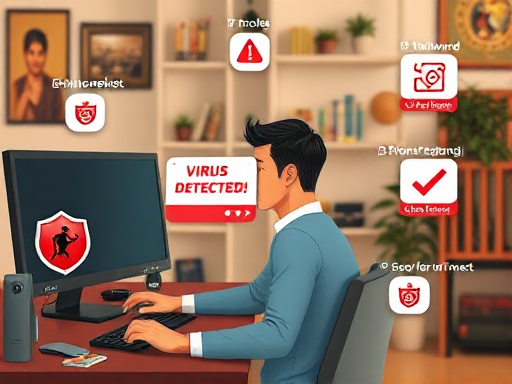
As a tech enthusiast, I remember the sinking feeling when my computer started acting up—unexpected pop-ups, slow performance, and that gnawing anxiety that maybe, just maybe, I had a virus lurking in the depths of my hard drive. It happened years ago, but the lessons I learned in that nerve-wracking experience remain relevant today. So let’s dive into the world of computer infections and arm ourselves with the know-how to combat them effectively!
Understanding Computer Infections
Computer infections can emerge in many forms. It’s essential to understand these threats to protect our devices. In this guide, I will help you navigate the world of infections, including their types and how they can impact your security.
Types of Infections
There are several major types of computer infections. Here’s a simple breakdown:
- Viruses: These are malicious codes that attach themselves to programs. They can spread from one device to another.
- Malware: This umbrella term includes all types of harmful software designed to cause damage. It ranges from viruses to more complex threats.
- Adware: While not always harmful, adware displays unwanted ads and can keep track of your online activities.
- Spyware: This type of software secretly monitors and collects data from your computer without your consent.
Making sense of these terms can be overwhelming. Just remember, they all aim to mislead, steal, or cause harm to your system.
Common Symptoms of Infection
If your computer is infected, you might notice:
- Sluggish performance
- Frequent crashes or freezes
- Pop-ups and strange ads
- Unusual error messages
Are you wondering why your computer acts differently? Changes in behavior often indicate lurking infections.
How Infections Compromise Your Security
Infections don’t just slow down your system. They can put your personal information at risk. Cybercriminals may steal:
- Your passwords
- Bank account details
- Identification numbers
This can lead to identity theft or financial loss. Keeping your computer safe is crucial for protecting sensitive information.
Why Prevention is Key
The old saying,
“An ounce of prevention is worth a pound of cure.” – Benjamin Franklin
rings true here. Taking steps to prevent infections can save you money and hassle. For instance:
- Regularly update your anti-virus software.
- Avoid downloading from untrustworthy sites.
- Always keep your system updated.
Did you know that the average cost of resolving a malware infection is around $1,900? That’s a significant amount. Investing in prevention is cheaper than waiting for an infection to occur.
Infections commonly arise from sketchy downloads or dubious websites. I can’t stress enough the importance of keeping your software updated. Doing this can ward off many potential threats.
In conclusion, being aware of these infections and taking preventive measures can protect your device and your information effectively. Stay vigilant out there!
Diagnosing Your Infection: Key Signs to Look For
Your computer is like a pet; you need to pay attention to its unusual behavior! Just as a pet may act differently when it’s unwell, your computer too will show signs when something’s off. Some infections are stealthy. They can lie in wait, biding their time for the perfect moment to strike. So, how do we know if our trusty device has been infected with malware? Let’s break down the key signs to look out for.
1. Unexplained Performance Issues
Have you noticed your computer slowing down? If basic tasks take much longer than usual, you might be facing an infection. Common symptoms include:
- Slow boot times
- Frequent crashes or freezes
- Excessive CPU or memory usage
It’s worth checking the Task Manager for high percent usage on processes you don’t recognize.
2. Unexpected Pop-Ups and Ads
Pop-ups can be annoying. However, if you’re bombarded with them, especially while browsing, it’s a big red flag. These ads can point to adware or other types of malware. They might even try to trick you into downloading “helpful” software that is anything but! Remember the old saying,
“If it looks like a bug, smells like a bug, it’s probably a bug.”
3. Strange Sounds or Behaviors from Your Computer
Have you ever heard your computer making strange noises? It’s not a sound design feature. Unusual sounds like buzzing, clicking, or even whirring can indicate hardware issues or a malfunction caused by malware. Your computer shouldn’t be talking back to you!
4. Tasks in the Task Manager You Don’t Recognize
The Task Manager is a powerful tool. But if you see processes that you don’t recognize, it’s time to dig deeper. Some malware disguises itself under unfamiliar names. It’s like finding a stranger in your home—would you ignore it?
Monitoring Your System
Keeping an eye on your computer’s operation is essential; think of it as a daily health check. Here are some recommended ways to stay vigilant:
- Run regular antivirus scans.
- Check for updates regularly.
- Be cautious about new software installations.
Having a solid antivirus toolkit can make a world of difference. It’s not enough to just react; you should also proactively defend against these digital invaders. It’s about keeping your digital space safe and sound.
Recognizing these signs early can save you a lot of trouble. Don’t ignore the subtle hints your computer gives. Remain vigilant and take action promptly to ensure that your technology is healthy and strong.
Essential Tools for Infection Removal
When dealing with computer infections, the right tools can make all the difference. I’ve seen it many times—having a quality antivirus or malware removal software can be your best defense. Let’s break down the essential tools you need for effective infection removal.
Choosing the Right Antivirus Software
First off, what should you look for in antivirus software? There are many options out there, but not all are created equally. Here are some tips:
- Research features: Ensure your software includes real-time scanning, ransomware protection, and a robust firewall.
- Check compatibility: Make sure it’s compatible with your operating system.
- User reviews: Always look for user feedback to gauge reliability.
Remember, the right tool for the job can be the difference between success and failure.
Exploring Malware Removal Tools Like Malwarebytes
While antivirus software is crucial, sometimes infections require specialized tools. Malwarebytes is a popular choice for this need. Here’s why:
- It detects and removes a wide range of security threats.
- It’s available for free and premium versions, allowing flexibility based on your needs.
- Many users report significant performance boosts after using it to remove infections—what a relief!
Speaking of user experience, did you know that 85% of users are satisfied with Malwarebytes? Let’s have a look at this data:
| Metric | Percentage |
|---|---|
| Satisfaction with Malwarebytes | 85% |
| Users reporting performance boost post-removal | [Insert percentage] |
Evaluating Free Versus Premium Solutions
This is an important aspect to consider. Are free tools enough to keep your system secure, or should you invest in premium solutions? Here are some points to think about:
- Free tools: Great for basic protection; however, they may lack comprehensive features.
- Premium solutions: These often offer more robust protections, including customer support and better real-time monitoring.
Ultimately, the choice comes down to your specific needs. Are you someone who frequents risky websites? Investing in a premium solution might be wise.
Importance of a Comprehensive Scanning Tool
Finally, let’s talk about comprehensive scanning tools. They’re crucial in identifying and removing threats that your antivirus may overlook.
- Regular scans: Plan to run full system scans periodically to catch anything lurking in the shadows.
- Update frequently: Keeping your scanning tools up to date ensures you have the latest threat definitions available.
Quality software plays a vital role in your battle against infections. Using good tools is like bringing the right weapons to a battle—absolutely essential for victory! Trust me, investing time and effort into these choices pays off in the long run.
“The right tool for the job can be the difference between success and failure.”
Step-by-Step Removal Process: Getting Your PC Clean
When your PC falls victim to malware, it’s crucial to act quickly. In this step-by-step guide, I’ll walk you through the process of removing these pesky infections. We can tackle this together!
1. Guided Steps to Enter Safe Mode
The first step is entering Safe Mode. This state of your computer isolates it and prevents malware from doing more harm. To get there, follow these instructions:
- Click on the Start button.
- Select Power.
- Hold the Shift key while you click Restart.
- Once you see the options menu, choose Troubleshoot.
- Next, go to Advanced options, then Startup Settings.
- Click Restart, and then press 4 for Safe Mode.
After this, your PC should start in Safe Mode. Remember, the internet will be disabled, making it harder for malware to communicate back with its sources. Safe Mode acts as a shelter while we do the cleanup.
2. Running Scans Using Selected Antivirus Software
Now that you’re in Safe Mode, it’s time to begin scanning for malware. You can run software like Malwarebytes or any trusted antivirus solution. Here’s what to do:
- Ensure your antivirus software is updated.
- Open the software and click on Scan.
- Be prepared to wait; as the saying goes,
“Patience is key; the best things come to those who wait—especially malware scans!”
These scans can take some time. You might uncover various threats: spyware, Trojans, or even backdoors. Let it finish, and don’t rush!
3. Using Quarantine Features
After the scan, what happens to the bad stuff? Most antivirus software has a quarantine feature. Here’s the scoop:
- Review what was found during the scan.
- Choose to quarantine or remove the suspicious files.
- Make sure to check the quarantine section to see if anything still looks suspicious.
This step is crucial as it ensures you have control over what gets deleted—that way, you won’t lose any essential files by mistake.
4. Removing Suspicious Programs
Next, let’s clean house! Follow these steps to check for suspicious programs:
- Go to the Control Panel.
- Select Programs and Features.
- Look through the list for anything you don’t recognize.
- Uninstall any programs that seem odd or that you did not install deliberately.
Lastly, pay attention to your browser settings. Check for any strange extensions or modifications that may have occurred. Sometimes malware hides where we least expect it!
Don’t rush through this process, or you may miss crucial steps! Think of it as a treasure hunt, searching for infection clues. Remember, while navigating these steps, keep your focus on cleaning your system effectively.
Preventive Measures to Protect Your PC in the Future
In today’s digital era, ensuring your computer’s safety is paramount. Let’s face it: cyber threats are everywhere. Just think about it—what good is your personal data if it’s not secure? Here, I will share some critical preventive measures to bolster your PC’s defenses. After all, “A stitch in time saves nine.”
1. Regularly Updating Software and Systems
First things first: always keep your software and operating systems updated. You might be wondering, why does this matter? The answer is straightforward. Most cyber attacks target vulnerabilities in outdated software. Did you know that an astounding 60% of cyber attacks are due to unpatched software? That’s a staggering statistic!
To stay protected, enable automatic updates wherever possible. This way, you won’t miss any critical security patches even if you forget to check manually.
2. Utilizing a Firewall
Next up, let’s talk about firewalls. Think of a firewall as a security guard for your computer. It helps to filter out harmful traffic that could compromise your security. Always ensure that your firewall is active. Whether you’re using Windows built-in firewall or a third-party option, it’s a necessary layer of protection.
- Check firewall settings regularly.
- Consider a hardware firewall for additional security.
3. Creating Strong Passwords
Your password is your first line of defense against unauthorized access. But what makes a strong password? Here are some golden rules:
- Use at least 12 characters.
- Include numbers, symbols, and a mix of upper and lowercase letters.
- Never use easily guessed information, like your birthday.
Don’t forget: a good password manager can help you store and manage your passwords securely. This tool is invaluable in the fight against hacking.
4. Educating Yourself on Phishing Threats
Lastly, let’s tackle the importance of education. Phishing attacks are becoming increasingly sophisticated. They’re designed to trick you into revealing personal information. So, how do you protect yourself?
- Always verify sender email addresses before clicking links.
- Be suspicious of unsolicited messages requesting sensitive data.
- Learn the signs of common phishing attempts.
Being informed equips you with the tools to spot scams before they lead to trouble.
In conclusion, prevention is truly the best medicine! Think of these steps like your computer’s immune system—keeping them strong and ready to fight infections helps protect your data. Remember, with every step you take, you are safeguarding not just your computer, but your entire online presence.
Conclusion: Your Roadmap to a Virus-Free PC
As we wrap up, let’s reflect on the key steps we’ve taken to shield our computers from viruses and malware. It’s not just about removing a virus when it strikes. It’s about creating a fortress around your digital life.
Summary of the Key Steps Taken
First, I shared methods for identifying potential infections. Be alert for unusual behaviors—like sudden spikes in CPU usage or unresponsive applications. These can be telltale signs of a lurking threat.
Next, we installed and updated effective malware removal software. Remember, tools like Malwarebytes and ESET are crucial for detecting and removing malware that hides in your system.
Encouragement to Stay Vigilant
Let’s not forget: staying vigilant is a must. Just because your system is clean today doesn’t mean it will be tomorrow. Regular scans are vital, and I cannot stress enough the importance of being proactive. An ounce of prevention is worth a pound of cure.
Reminder of the Importance of Backups
Have you considered your data backups? It’s easy to overlook this. Backups are your safeguard against not just malware but all kinds of disaster. Always keep important data off the main PC or in the cloud. Think about it: losing treasured photos or important files can be heart-wrenching.
Closing Thoughts on Computer Security
In closing, let’s ponder: What is the value of a secure computer? I believe it goes beyond convenience—it’s about peace of mind. The golden rule of the tech world rings true: Look after your computer, and it will take care of you!
Remember that effective computer security is an ongoing process. Create maintenance plans that fit your lifestyle. Schedule regular scans, update your software, and keep your security practices sharp. Simple routines help build a resilient digital environment.
“An ounce of prevention is worth a pound of cure.”
Ultimately, our digital spaces deserve the same attention we give to our homes. If we can commit to vigilance and maintenance, we can enjoy a safer, worry-free experience online. So let’s get started with diligent practices today, ensuring that our roadmaps to a virus-free PC lead to safer journeys ahead!
TL;DR: We’ve highlighted key steps in virus detection, the importance of being vigilant and backing up data, and the continuous effort needed for computer safety. Remember, a little prevention goes a long way!
